Imperial Arachno Academy · The Editor
Conducting the Von Block Editor
The framework gives you the classes. The Von Block Editor is where they go onto blocks: a window that opens beside WordPress’s block editor, follows the block you select, and writes its classes and custom styles, breakpoint by breakpoint.
Every picture on this page is the real thing: screenshots of this site’s own Von Block Editor, working on the hero of an example café page.
On this page
Four parts, in the order you meet them
Read the Framework page first: it explains the classes this page puts on blocks. The Example page then takes one real hero apart in the Von Block Editor, concept by concept.
1
Von Block in the block editor
What the plugin adds to WordPress’s editor, and what it leaves alone.
2
The Von Block Editor, part by part
Every part of the window, from the pills to the breakpoint bands.
3
Custom styles
The declarations you write on one block: values, states and grid measures.
4
Von Block in the block editor
Von Block does not replace anything. Your pages are still built from WordPress’s own blocks, in WordPress’s own editor; Von Block adds a few controls to its top bar and a grid to its canvas.
The “Von Block” button

Opens the Von Block Editor, the window this page is about. When it is already open, the button brings it to the front; you close it in the window itself.
The width slider

Sets how wide the canvas is, so you can see a page at any screen size while you work on it.
The cogwheel

Opens the Von Block settings page in a new tab, so the page you are editing stays open. Only administrators see it.
The grid switch
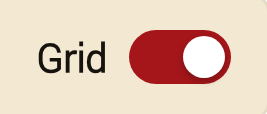
Shows or hides the margins, columns and gutters over the canvas, so you can see what a block lines up with. The Von Block Editor has the same switch, and the two always agree.
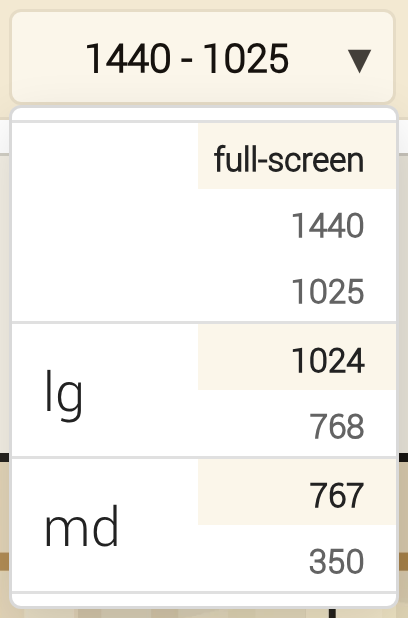
The breakpoint menu
Says which breakpoint the canvas is in, 1440 - 1025 in the picture, the default one. Opened, it lists every breakpoint with the screen sizes it covers; press one and the canvas takes it.
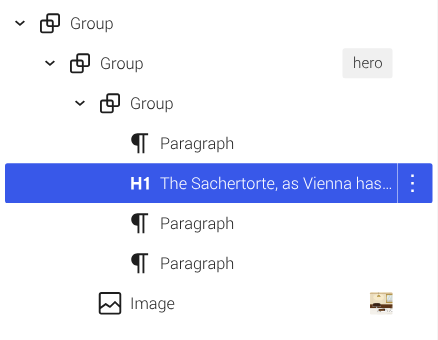
Plain WordPress blocks
The List View shows what the hero is made of: three Groups, a Heading, three Paragraphs and an Image. No special blocks; Von Block only adds classes and custom styles to them.
Von Block Editor in a window of its own
Everything Von Block puts on a block is done in its own window, so the screenshots here show the List View instead of the block settings. Have a second monitor? Put the Von Block Editor on it and give the whole of the first one to the page. Finally free of sidebar clutter!
The Von Block Editor, part by part
A real browser window of its own, so you can put it on a second screen. It shows whichever block is selected in the block editor, and everything you do in it goes straight onto that block.
The top line

The block (here the hero, a Group) and the page it is on. Save saves the page, just as the block editor’s own Save does.
The first row of pills

What you are styling: block, or one of the composite classes on it, shown as .section ×. + composite puts another one on the block.
The second row

+ state picks a state, such as :hover, to write instead of the block’s ordinary look.
The box

Type a class, or a declaration such as gap: 24px, and press Enter or the tick. It suggests classes as you type, and Tab takes the suggestion.
Each row

A tick box picks it out, to act on several at once; two handles copy or move it to another band; and × takes it off.
The list
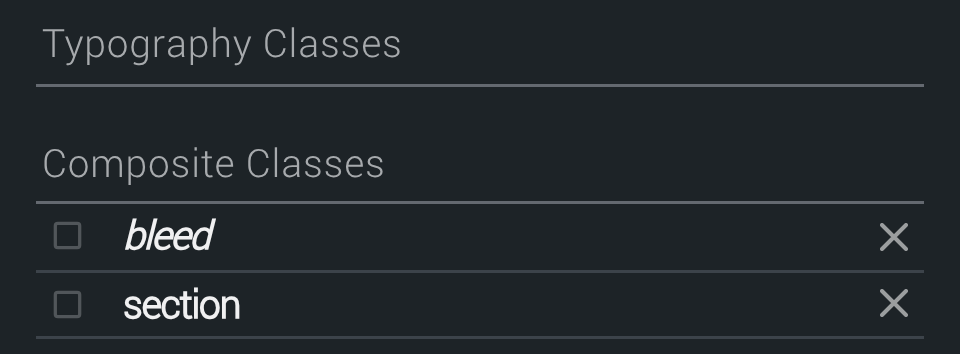
Typography classes and composite classes first, since each covers every breakpoint. A name in italics, like bleed, is one the framework itself provides.
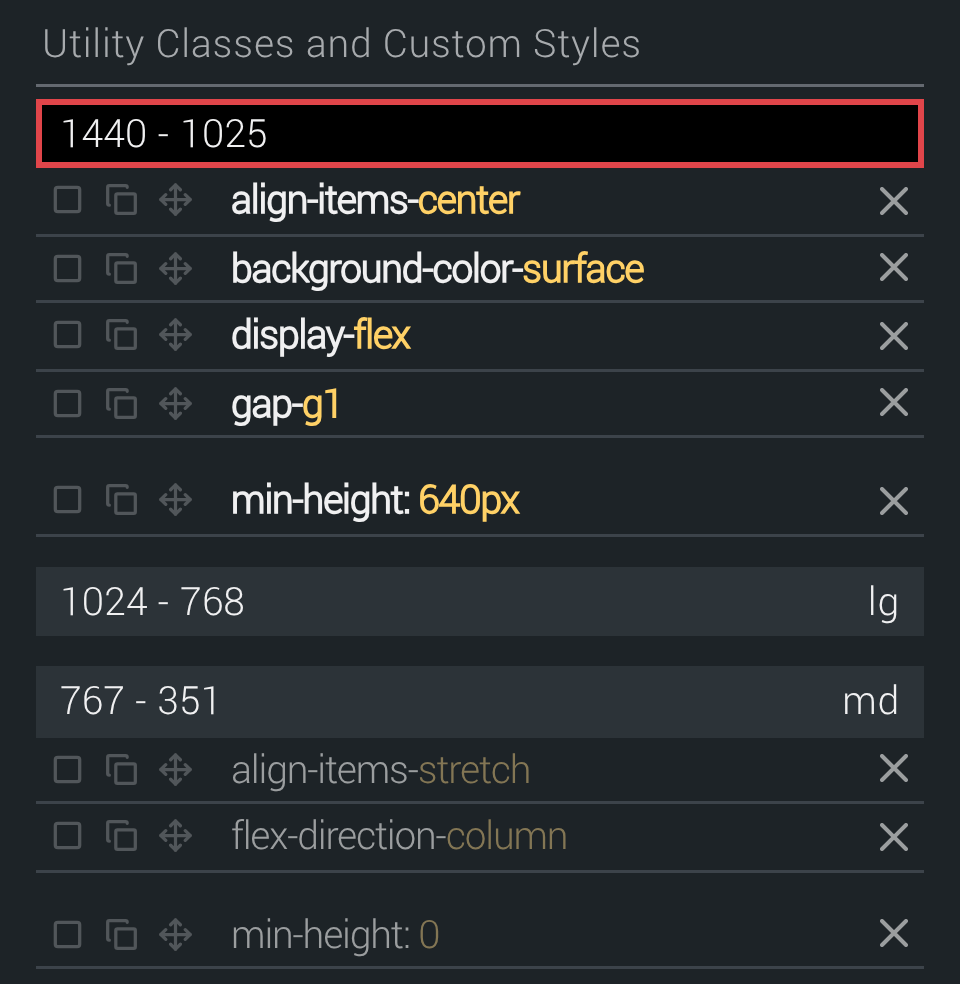
The breakpoint bands
One band per breakpoint, the utility classes first and the custom styles after them. The black one, ringed in red, is the breakpoint the canvas is showing, and what you type goes there; what does not apply at that breakpoint is grey. Press a band to see the canvas at that breakpoint.
Find a class and put it on
Custom styles for the one-offs
Some values belong to one block only. For those, write the declaration itself on the block, per breakpoint, just as you would a class.
A one-off value
The café hero on the Example page is min-height: 640px in the default band and min-height: 0 in md. No other block needs that.
A state
Pick a pseudo such as :hover and the declarations apply only then, like the café picture tilting by a degree on the Example page.
Something inside the block
A rule can say what it applies within: a for the links in a paragraph, > img for a picture directly inside the block.
A grid measure
Values can use the grid too: margin-right: --m1c1g1 is stored as var(--m1c1g1) and follows the grid at every width.
A good rule: once you have written the same custom style a second time, it wants to be a class. Add the value to your framework, and it exists everywhere.
Before you start
Four things that catch people out
Mind which band is black
What you type goes into the band the canvas is showing. With the canvas at lg, width-c6 lands as lg-width-c6. Press the default band first when a class is meant for every width.
Composite classes come from the pill
Typing frame into the box is refused: a composite class is picked from + composite, which lists the ones your site has.
A composite pill styles the class
With .frame chosen instead of block, what you type goes into the frame class, for every block that carries it. Go back to block to style just this one.
Leave “Additional CSS classes” alone
Von Block owns every mcg- class on a block and rewrites them from the Von Block Editor, so one typed into the block editor’s Advanced panel disappears. Use the window.
Next
The framework
You know the window. The next page explains what goes into it: the grid and its breakpoints, colors and fonts, and the three kinds of class the Von Block Editor puts on a block.
Try it now
Take the reins yourself
Reading about it is one thing; ruling it is another. Pick your way in: build by hand in a WordPress that runs right in your browser, or take a real demo site for an hour and let Claude build it while you give the orders. Nothing to install and no account in either.
WP Playground (no Claude)
A whole WordPress with Von Block that runs right in your browser. It is never busy, and what you change stays in your browser. Everything works there except Claude, which cannot reach a site inside your browser: take the hero apart here while the demo sites are taken.
Claude enabled demo site
A real WordPress site with Von Block, yours for an hour. Connect Claude to it and ask for a page. It requires a Claude subscription, and you connect to the site through a Claude Connector in Settings → Connectors.
There are only a few of these sites, so at times they are all taken; the button says when the next one is free.